
Wednesday, September 7, 2016
Wednesday, August 3, 2016
AS400 Job Queue Not Processing Job
Scenario - One of Job Queue is not processing Jobs and All Jobs in that Queue is going into wait status.
How to recover without restarting. This can be done by fooling AS400 and creating same queue with higher sequence number.
In my case Queue EDIJOB is not processing any Job in JDE. All Job in EDIJOB queue are in wait status. All other Queue are processing Jobs.
1. Find Sequence number of EDIJOB in QGPL library
DSPSBSD SBSD(QBATCH)
do 6 - Job queue entries
Note down SEQ Number for EDIJOB.
2. Create new JOBQ EDIJOB in QUSRSYS library
CRTJOBQ JOBQ(QUSRSYS/EDIJOB) TEXT('Temporsry EDIJOB Queue')
3. Add EDIJOB Queue to QBATCH Subsystem
Assign Sequence Number above original Jobqueue
ADDJOBQE SBSD(QBATCH) JOBQ(QUSRSYS/USSOP1) SEQNBR(37)
4. Run Job from JDE in EDIJOB and verify Jobs are processing.
--------------------------------------------------------------------------------------------------------
After JDE Maintenance after hour/weekend delete new Jobqueue
DLTJOBQ JOBQ(QUSRSYS/EDIJOB)
How to recover without restarting. This can be done by fooling AS400 and creating same queue with higher sequence number.
In my case Queue EDIJOB is not processing any Job in JDE. All Job in EDIJOB queue are in wait status. All other Queue are processing Jobs.
1. Find Sequence number of EDIJOB in QGPL library
DSPSBSD SBSD(QBATCH)
do 6 - Job queue entries
Note down SEQ Number for EDIJOB.
2. Create new JOBQ EDIJOB in QUSRSYS library
CRTJOBQ JOBQ(QUSRSYS/EDIJOB) TEXT('Temporsry EDIJOB Queue')
3. Add EDIJOB Queue to QBATCH Subsystem
Assign Sequence Number above original Jobqueue
ADDJOBQE SBSD(QBATCH) JOBQ(QUSRSYS/USSOP1) SEQNBR(37)
4. Run Job from JDE in EDIJOB and verify Jobs are processing.
--------------------------------------------------------------------------------------------------------
After JDE Maintenance after hour/weekend delete new Jobqueue
DLTJOBQ JOBQ(QUSRSYS/EDIJOB)


Thursday, June 2, 2016
Customize Login Page for 9.1.5.x - 9.2.x.x Tool Release
Change Color code on ALTA with tool release 9.1.5.x to 9.2.x.x
Open File webclient.css
x:\Oracle\Middleware\user_projects\domains\E1_HTTP\servers\JDVxxx\stage\JDVxxx\app\webclient.war\share\css\webclient.css
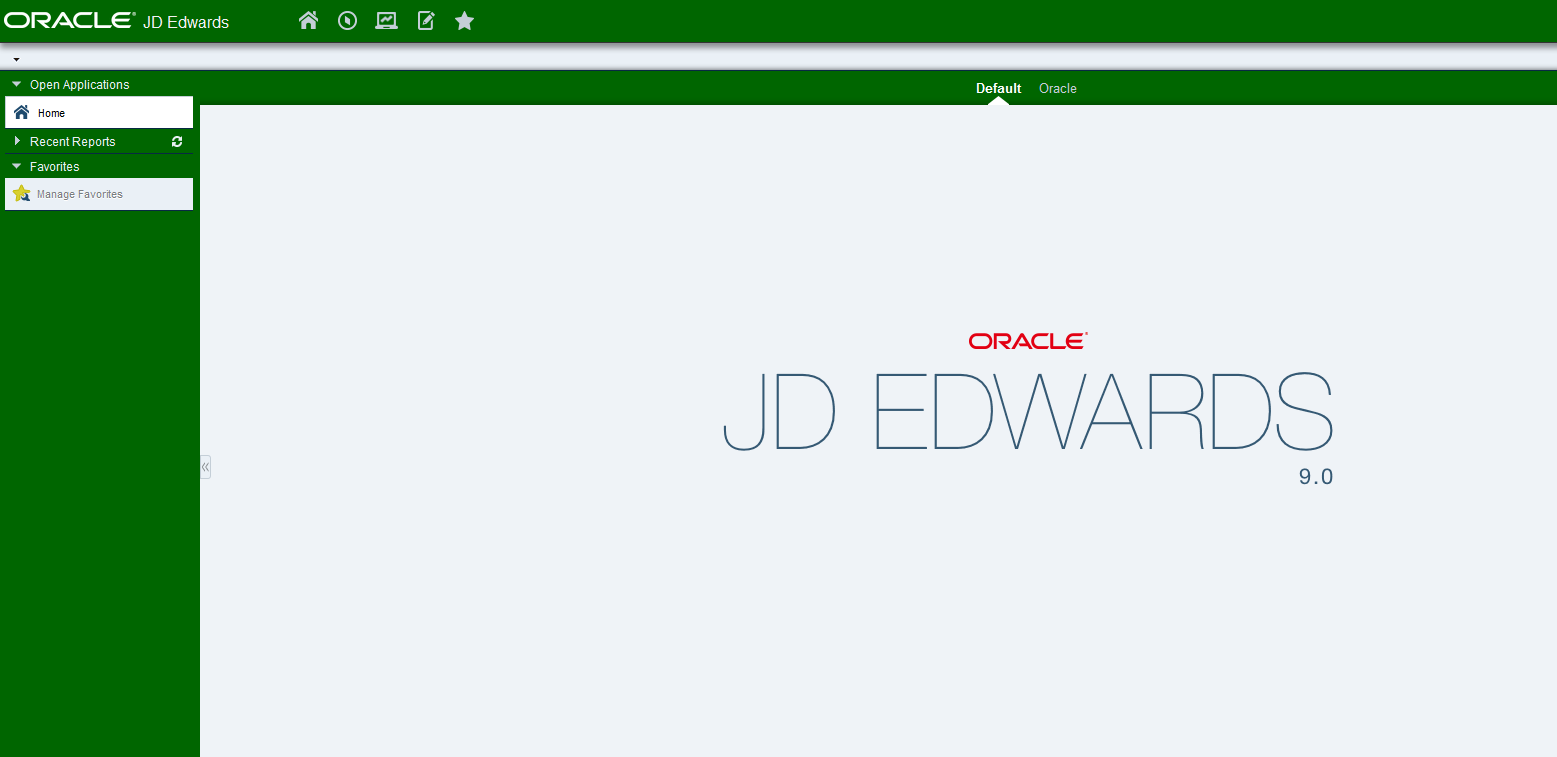
Color Code is changed from Blue to Green
Color Code change in file #1E4A6D to #006600
Save file and clear browser cache. The color will change to Green on Login Screen and after login also.


Use below chart to choose color code of your choice

Wednesday, December 17, 2014
Kill a Process by Looking up the Port
FOR /F "tokens=5 delims= " %%P IN ('netstat -ano ^| findstr :8700') DO @ECHO TaskKill.exe /PID %%P /F
After I was confident I have removed ECHO command.
FOR /F "tokens=5 delims= " %%P IN ('netstat -ano ^| findstr :8700') DO TaskKill.exe /PID %%P /F
Here is example how this work.
netstat -ano will give result in below format. The Process ID associate with Port 8700 is 2686.
Note 2684 (PID) is 5 column in output.

Hence token=5. Run above command and see which column is a Port Number. For some OS like XP this is 4th column. So for XP token=4"tokens=5 delims= "This lets you split up each line by whitespace, and take the 5th chunk in that line, and stuffs it into %variable (in our case, %%P). delims looks empty, but that extra space is actually significant.netstat -anoRun this command on command prompt and see its usage.^|Transfer output from netstat and passes it to findstrfindstr :8700This filters any output that is passed into it, returning only lines that contain :8700.TaskKill.exe /PID This kills a running task, using the process ID.%%P instead of %PThis is required in batch files. If you did this on the command prompt, you would use %P instead. This is required in batch files. If you did this on the command prompt, you would use %P instead. Monday, November 3, 2014
Update ESU and ASU DV from PD
in Planner (E1Local Oracle Database
delete from JDESY910.F9671 where SDSUDFUT2 in ('DV910');
COMMIT;
CREATE TABLE JDEsy910.F9671_BKP AS SELECT * FROM JDESY910.F9671 where SDSUDFUT2='PD910' and SDPKGNAME not in (select SDPKGNAME from JDEsy910.F9671 where SDSUDFUT2='DV910');
UPDATE JDEsy910.F9671_BKP set SDSUDFUT2='DV910';
COMMIT;
insert into JDEsy910.F9671 select * from JDEsy910.F9671_BKP;
COMMIT;
DROP TABLE JDESY910.F9671_BKP;
delete from JDESY910.F9672 where SUPATHCD in ('DV910');
CREATE TABLE JDEsy910.F9672_BKP AS SELECT * from JDEsy910.F9672 where SUPATHCD='PD910' and SUPKGNAME not in (select SUPKGNAME from JDEsy910.F9672 where SUPATHCD='DV910');
UPDATE JDEsy910.F9672_BKP set SUPATHCD='DV910';
COMMIT;
insert into JDEsy910.F9672 select * from JDEsy910.F9672_BKP;
COMMIT;
DROP TABLE JDESY910.F9672_BKP;
in Planner (E1Local Oracle Database
delete from JDESY910.F9671 where SDSUDFUT2 in ('DV910');
COMMIT;
CREATE TABLE JDEsy910.F9671_BKP AS SELECT * FROM JDESY910.F9671 where SDSUDFUT2='PD910' and SDPKGNAME not in (select SDPKGNAME from JDEsy910.F9671 where SDSUDFUT2='DV910');
UPDATE JDEsy910.F9671_BKP set SDSUDFUT2='DV910';
COMMIT;
insert into JDEsy910.F9671 select * from JDEsy910.F9671_BKP;
COMMIT;
DROP TABLE JDESY910.F9671_BKP;
delete from JDESY910.F9672 where SUPATHCD in ('DV910');
CREATE TABLE JDEsy910.F9672_BKP AS SELECT * from JDEsy910.F9672 where SUPATHCD='PD910' and SUPKGNAME not in (select SUPKGNAME from JDEsy910.F9672 where SUPATHCD='DV910');
UPDATE JDEsy910.F9672_BKP set SUPATHCD='DV910';
COMMIT;
insert into JDEsy910.F9672 select * from JDEsy910.F9672_BKP;
COMMIT;
DROP TABLE JDESY910.F9672_BKP;
Tuesday, July 22, 2014
Reset OC4J Admin Password for OAS
Source - http://www.dbuggr.com/milly/steps-reset-oc4j-admin-password/
Steps on how to reset OC4J Admin
Password
If you lost your oc4jadmin password
(Oracle Application Server admin), follow the steps below to update the
password -
Follow the steps below to reset
oc4jadmin user:
Stop OC4J and the Application Server
Control. (opmnctl stopall)
- Edit system-jazn-data.xml file with text editor
(UNIX)
$OAS_HOME/j2ee/home/config/system-jazn-data.xml
(Windows)
$OAS_HOME\j2ee\home\config\system-jazn-data.xml
Search for “oc4jadmin” user in system-jazn-data.xml. You’ll see something similar to this:
- Replace the encrypted password string between tag to the password you desire. Make sure you prefix the password with an exclamation point (!) and also follow the password requirements for OAS. For example:
- Delete everything under persistence directory (do not delete persistence directory itself):
(UNIX)
$OAS_HOME/j2ee/oc4j_soa/persistence/
(Windows)
$OAS_HOME\j2ee\oc4j_soa\persistence\
- Start OC4J and the Application Server Control. (opmnctl startall)
Subscribe to:
Posts (Atom)